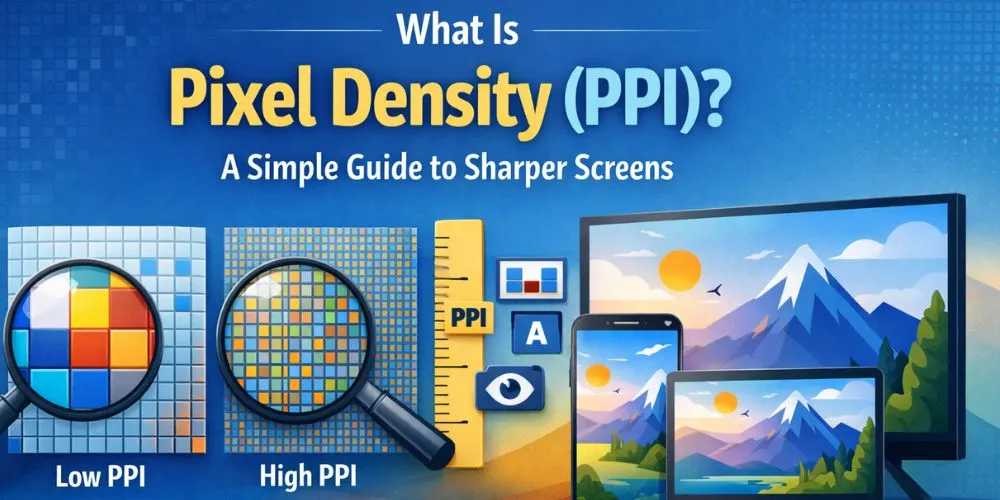
A screen can carry a “high resolution” label and still look a little soft. At the same time, another display might use fewer pixels overall yet appear incredibly sharp. The reason behind this difference is usually pixel density basically, how closely those pixels sit together on the screen.
Pixel density is measured in PPI (pixels per inch). An easy way to picture it is by thinking about a tiled floor. When the tiles are small and tightly packed, the surface looks smooth, even from up close. When the tiles are bigger, their edges become easier to see. Screens work in much the same way. Higher pixel density gives you clearer text, smoother curves, and finer image details, especially when you’re viewing the display at close range.
In this guide, we’ll break down pixel density in simple terms, clear up common misunderstandings, and help you choose the right screen based on how you actually use your devices every day.
What is Pixel Density?
A display is made of pixels, which are tiny colored points that light up to form an image. Pixel density explains how many pixels fit inside one inch of the screen.
When pixels are arranged at a higher density
- Text renders sharply with improved clarity
- Icons display refined edges
- Images preserve fine detail
- Lines and curves appear smoother
When pixel spacing increases, overall image refinement decreases, especially at close viewing distances.
This is why pixel density becomes more important on devices viewed at close range, such as phones and tablets.
PPI vs DPI
These two terms are commonly used in display conversations.
PPI (Pixels Per Inch)
This is a display-focused metric that represents pixel density across smartphones, monitors, laptops, tablets, TVs, and LED panels.
DPI (Dots Per Inch)
This metric is primarily used for print and indicates how many ink dots a printer can apply per inch. While DPI is commonly mentioned for screens, PPI is the correct measurement for display pixel density.
Resolution vs Pixel Density: Why “1080p” Isn’t Enough
Resolution defines the total pixel dimensions of a screen, while pixel density measures how tightly those pixels are packed.
Here’s the easiest way to understand it:
- A 1080p image on a 6-inch phone looks extremely sharp.
- The same 1080p on a 32-inch TV looks softer if you stand close.
Same resolution, different physical size, different sharpness.
So when you compare screens, don’t stop at “4K” or “Full HD.” Always consider:
- screen size
- resolution
- viewing distance
Those three decide the real experience.
How Pixel Density Works (No Heavy Math)
Pixel density increases when:
- resolution goes up, while screen size stays the same
- screen size goes down, while resolution stays the same
A smaller display with the same resolution will almost always look sharper because the pixels are squeezed into a tighter space.
If you ever want the exact number, PPI calculators can give it in seconds by using screen size and resolution. But the idea is simple: more pixels per inch = sharper display.
Why Pixel Density Matters in Real Use
Pixel density isn’t a spec that only engineers care about. You feel it every day.
1) Text clarity and reading comfort
If you read long articles, write documents, or scroll social apps for hours, higher PPI usually feels smoother. Letters look cleaner and curves look more natural.
2) Image detail
Photos look more “real” when pixel density is higher. Fine textures (hair strands, fabric, small objects) show better.
3) UI polish
App icons, buttons, and interface elements look more refined. On lower PPI displays, you may notice jagged edges and rough curves.
4) Eye comfort at close distance
When the screen is near your face, low pixel density can make the image feel harsh. Higher density often feels easier on the eyes.
Typical Pixel Density by Device Type
Pixel density expectations change by device because viewing distance changes.
Smartphones
Phones are used very close, so they usually sit in a higher PPI range. Many good phones deliver 300 PPI and above, and premium models go higher.
Tablets
Tablets sit farther away than phones. A solid mid-range PPI still looks sharp at arm’s length.
Laptops
Laptop sharpness depends on screen size and resolution. Higher-resolution laptops on the same size panel look noticeably crisper for text work.
Desktop monitors
Monitors vary a lot. A 24-inch 1080p display looks decent from normal desk distance, while a 27-inch 1440p looks sharper. A 27-inch 4K looks very sharp.
TVs
TVs are viewed from several feet away. That’s why a TV can have lower PPI and still look great in a living room.
Large LED screens
LED billboards and indoor event displays are designed for distance. Pixel density is not the main spec people use there pixel pitch is.
Pixel Density vs Viewing Distance: The Missing Piece
This is the part many articles skip.
A screen doesn’t need extreme pixel density if you sit far away. Your eyes can’t resolve the tiny pixel grid from a distance.
That’s why:
- phones benefit from high PPI
- monitors benefit from moderate to high PPI depending on desk setup
- TVs can look excellent with lower PPI because you’re not sitting 12 inches away
So the right question isn’t “What’s the highest PPI?”
The better question is “What PPI makes sense for my distance?”
Human Vision and the “Retina” Idea
You might have heard people say “retina display.” That phrase basically means: the screen has enough pixel density that, at normal viewing distance, you struggle to see individual pixels.
It’s not magic. It’s just a way of describing a point where extra pixel density becomes harder to notice.
This threshold differs based on:
- how close you sit
- your eyesight
- screen brightness and sharpness settings
Pixel Density in LED Screens: Where Pixel Pitch Comes In
For LED displays, people often talk about pixel pitch instead of PPI.
What is pixel pitch?
Pixel pitch is the distance between pixels (usually measured in millimeters). Smaller pitch means pixels are closer, which usually creates a sharper image at closer viewing distances.
- Smaller pitch = higher detail for indoor screens
- Larger pitch = fine for outdoor screens viewed from far
So for LED walls, the “best” setup depends heavily on how close the audience will be.
Does Higher Pixel Density Always Mean Better?
Not always.
Higher pixel density can be great, but it’s not the only factor that shapes quality. A screen can have high PPI but still look bad if it has:
- poor brightness
- weak contrast
- bad color calibration
- low-quality panel
- heavy glare
- aggressive sharpening that makes text look unnatural
Pixel density improves sharpness, but the panel still matters.
Practical Guide: Choosing the Right Pixel Density
Here are practical targets that usually make sense:
For phones
If you read a lot and hold the phone close, aim for 300+ PPI.
For laptops
If you do writing, browsing, and office tasks, a sharper laptop display feels better. Many people find 200–250 PPI comfortable.
For desktop monitors
- Work + browsing: moderate PPI is usually fine
- Creative work: higher PPI feels cleaner for details
- Big monitors: higher resolution helps keep density from dropping
For TVs
Instead of chasing PPI, focus on:
- your seating distance
- screen size
- resolution that fits the room
Quick Checks You Can Do Before Buying
When you’re comparing displays, try these simple checks:
- Open a page with small text and look at letter edges
- Zoom out on a photo and check fine detail
- Look at diagonal lines (logos, icons, curves)
- Sit at your normal distance and see if anything looks rough
If the display looks clean in real use, the PPI is doing its job.
How an Inches to Pixels Converter Helps You Calculate Pixel Density
When you’re trying to understand screen sharpness, numbers alone can feel confusing. This is where an inches to pixels converter becomes extremely helpful. Instead of guessing how resolution translates to real-world clarity, the converter quickly shows how physical screen size connects to pixel measurements.
An inches to pixels converter works by translating screen dimensions into pixel values based on resolution and pixel density. This makes it much easier to compare devices fairly. For example, two screens may share the same resolution, but the one with smaller physical size will pack pixels more tightly. Using a converter removes the guesswork and gives you clear, practical numbers you can trust.
Many designers, developers, and everyday users rely on an inches to pixels converter when planning layouts, checking image sizes, or evaluating display sharpness. It saves time and prevents costly sizing mistakes.
Final Takeaway
Pixel density is one of the most practical display concepts because it explains why one screen feels crisp and another feels soft even if both claim the same resolution.
Remember this simple rule:
- Resolution tells you how many pixels exist.
- Pixel density tells you how tightly those pixels are packed.